Use Case Restaurant Visits

In Deeply, every entry lives in an album, and every album belongs to a collection.

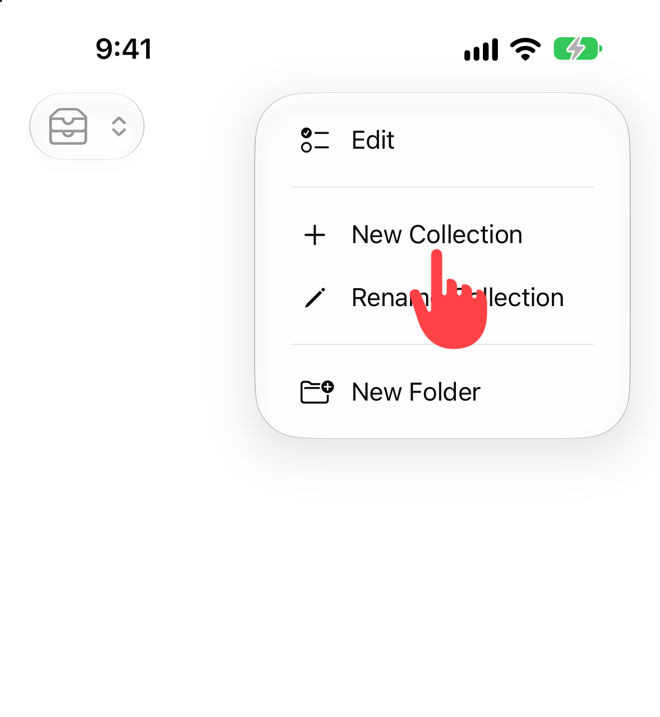
Create a new collection: Food & Drink
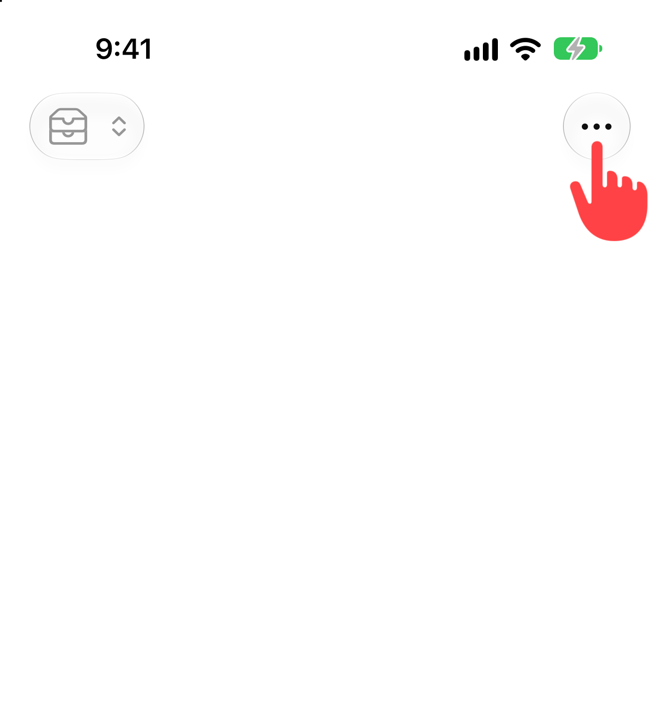
Tap ⋯ at the top right.
Image 2.1 Tap ⋯ at the top right.
Tap **New Collection**.
Image 2.2 Tap New Collection.

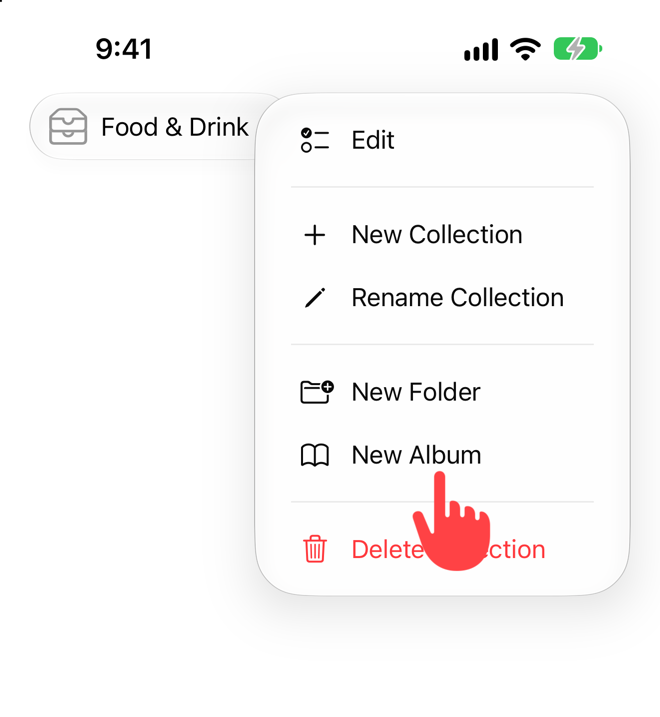
Inside it, create a new album: Restaurant Visits
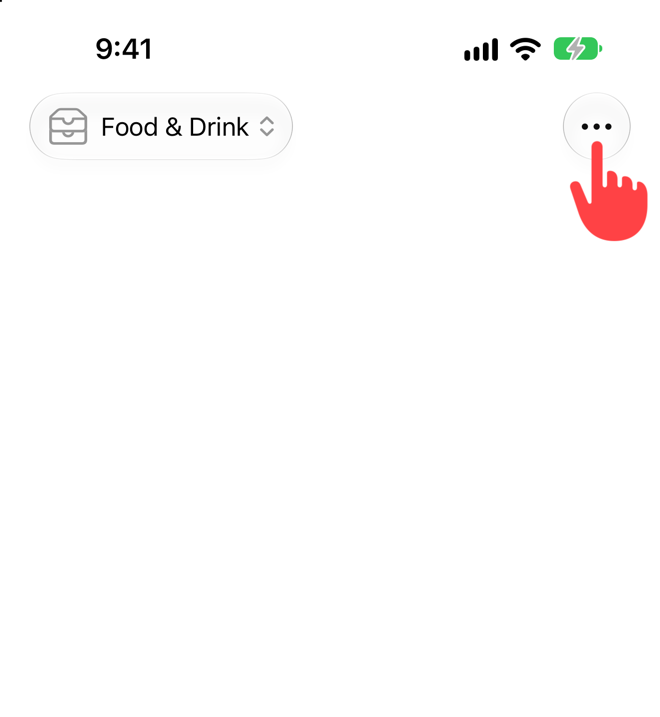
Tap ⋯ again.
Image 2.3 Tap ⋯ again.
Tap **New Album**.
Image 2.4 Tap New Album.

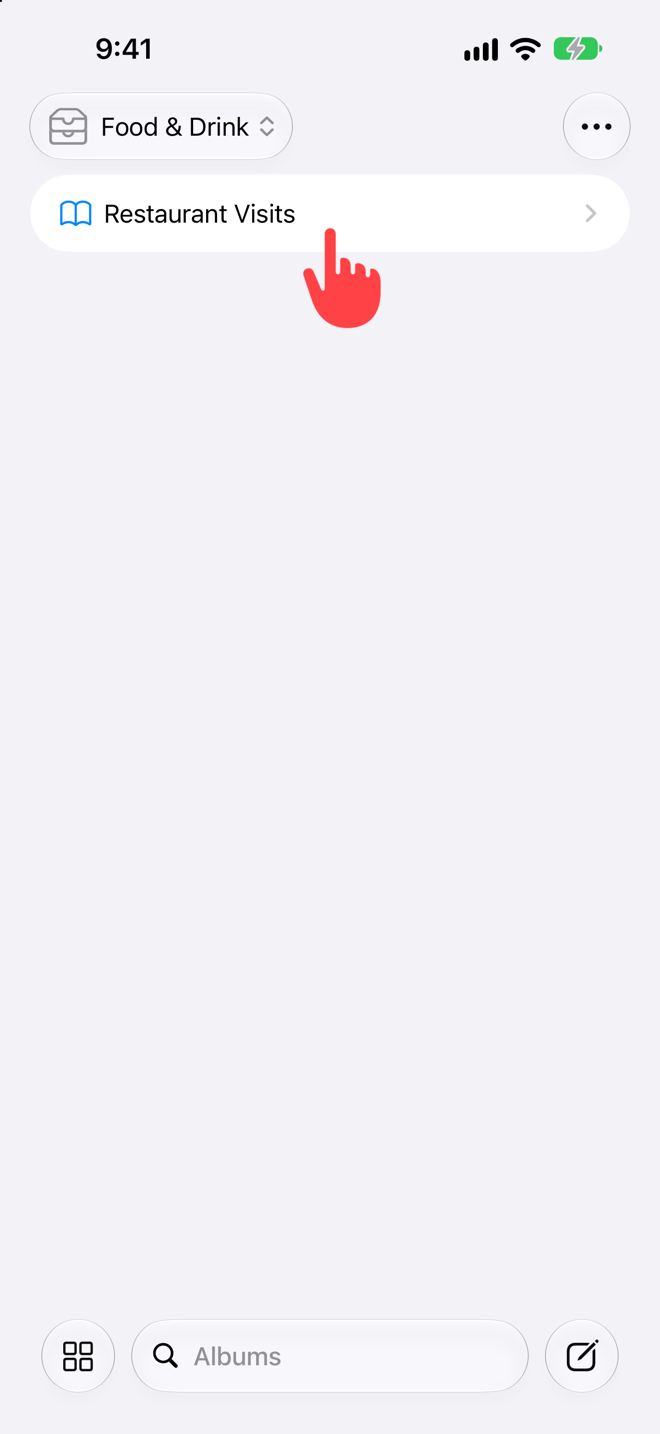
In the album, create a new entry.

Tap the album.
Image 2.5 Tap the album.
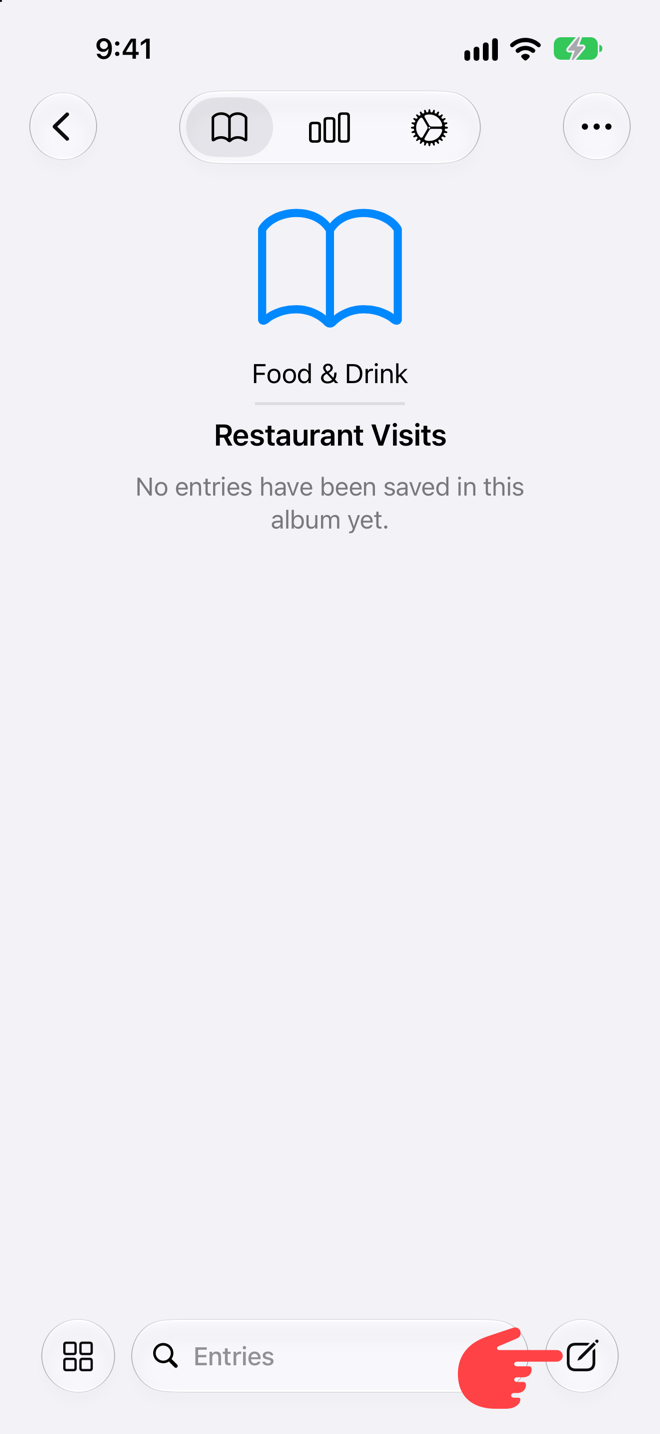
Tap the **New Entry** button at the bottom right.
Image 2.6 Tap the New Entry button at the bottom right.

The collection and album become the entry’s title.
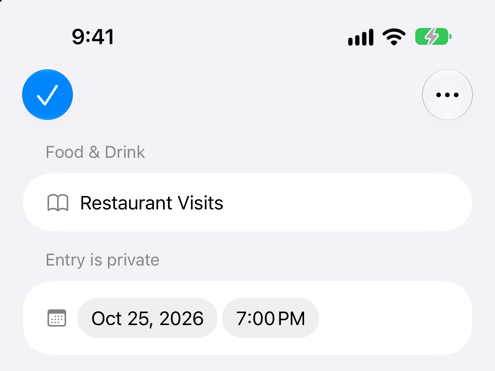
Collection and album sit above the entry.
Image 2.7 Collection and album sit above the entry.

Capture the moment.

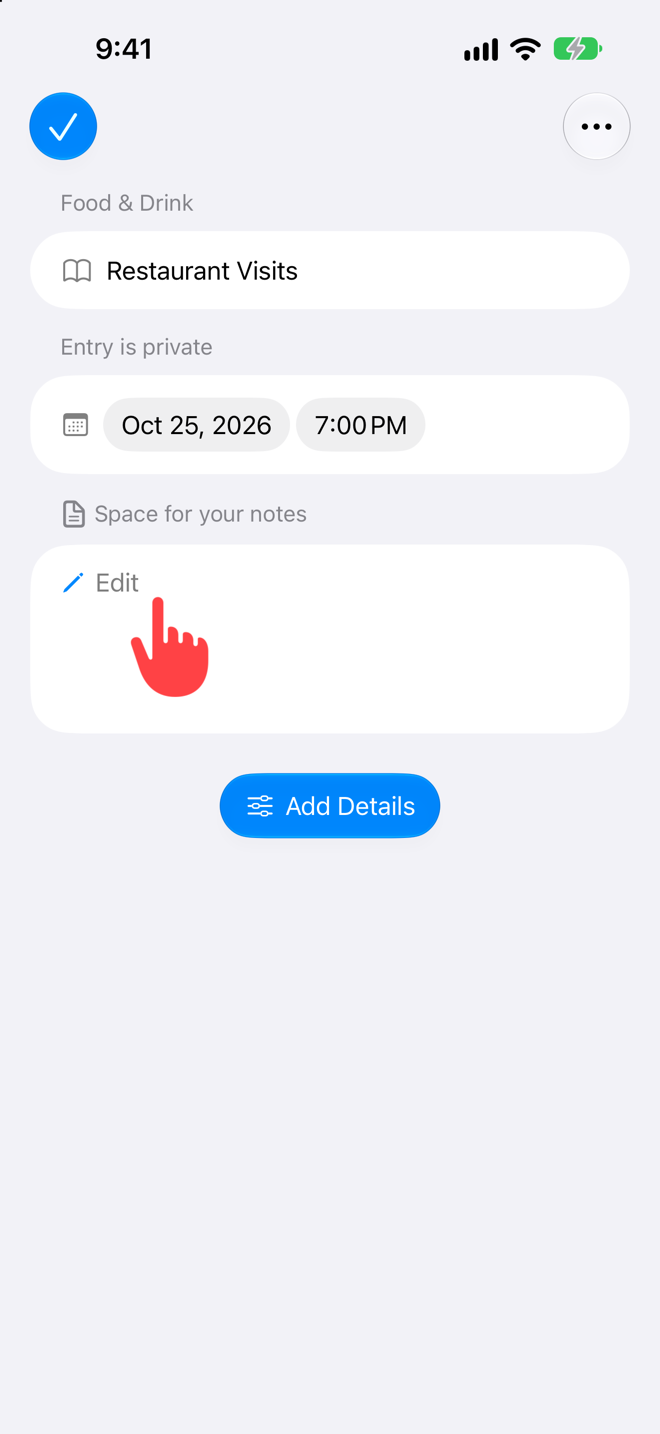
Tap **Edit**.
Image 2.8 Tap Edit.
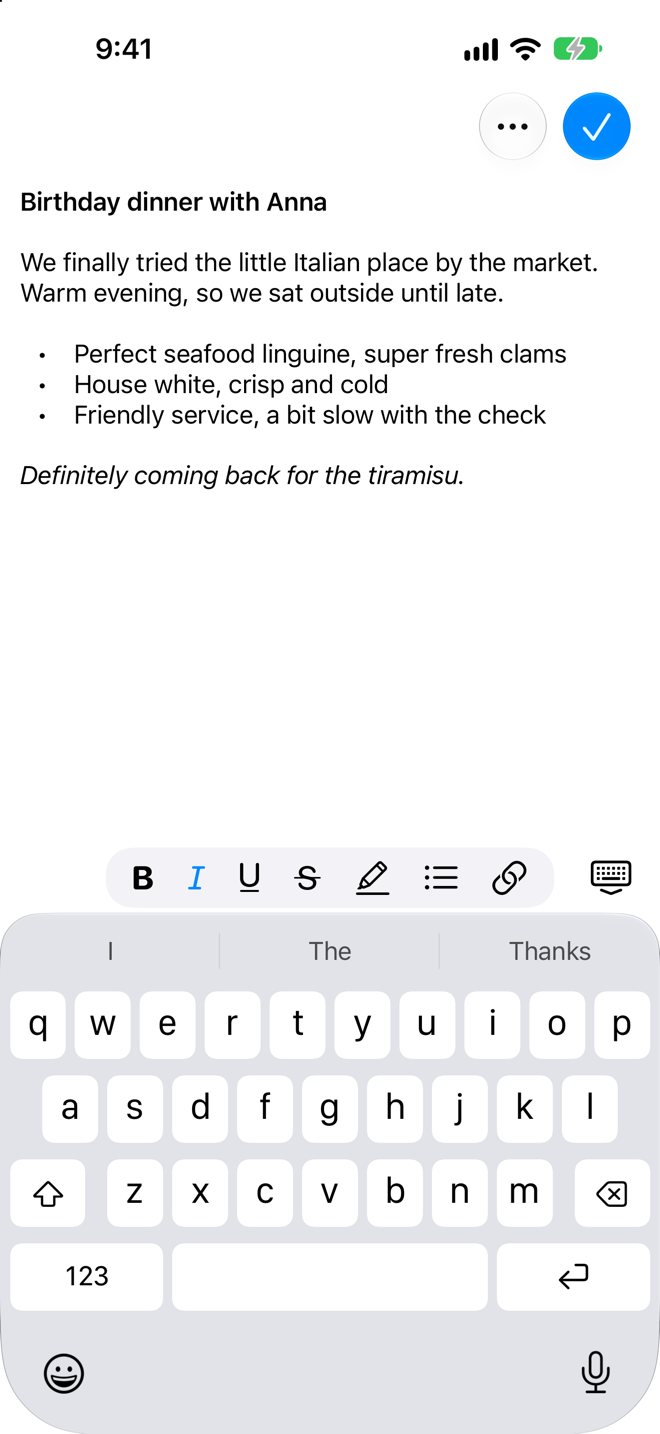
Format text with the bar above the keyboard.
Image 2.9 Format text with the bar above the keyboard.

What makes Deeply special: details let you compare moments.

For your restaurant visit:

  1. Media
  2. Currency
  3. Rating
  4. Location
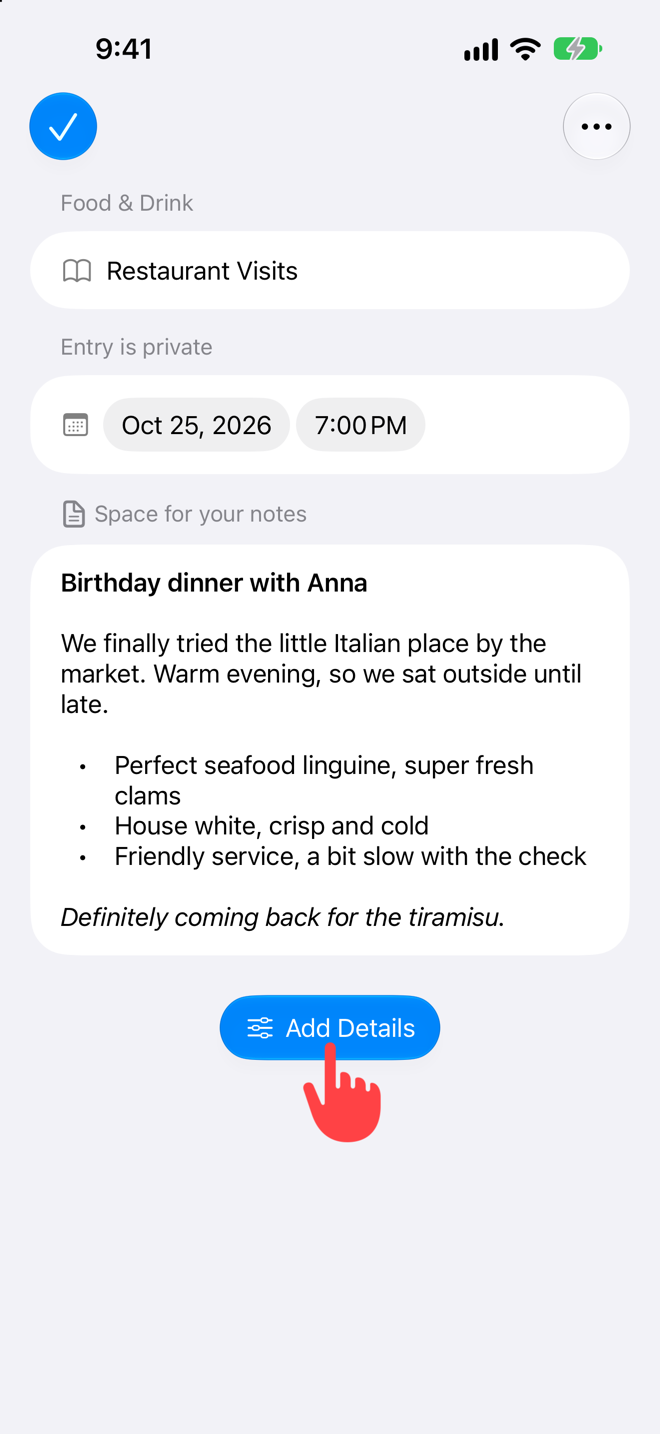
The entry with your notes. Tap **Add Details**.
Image 2.10 The entry with your notes. Tap Add Details.
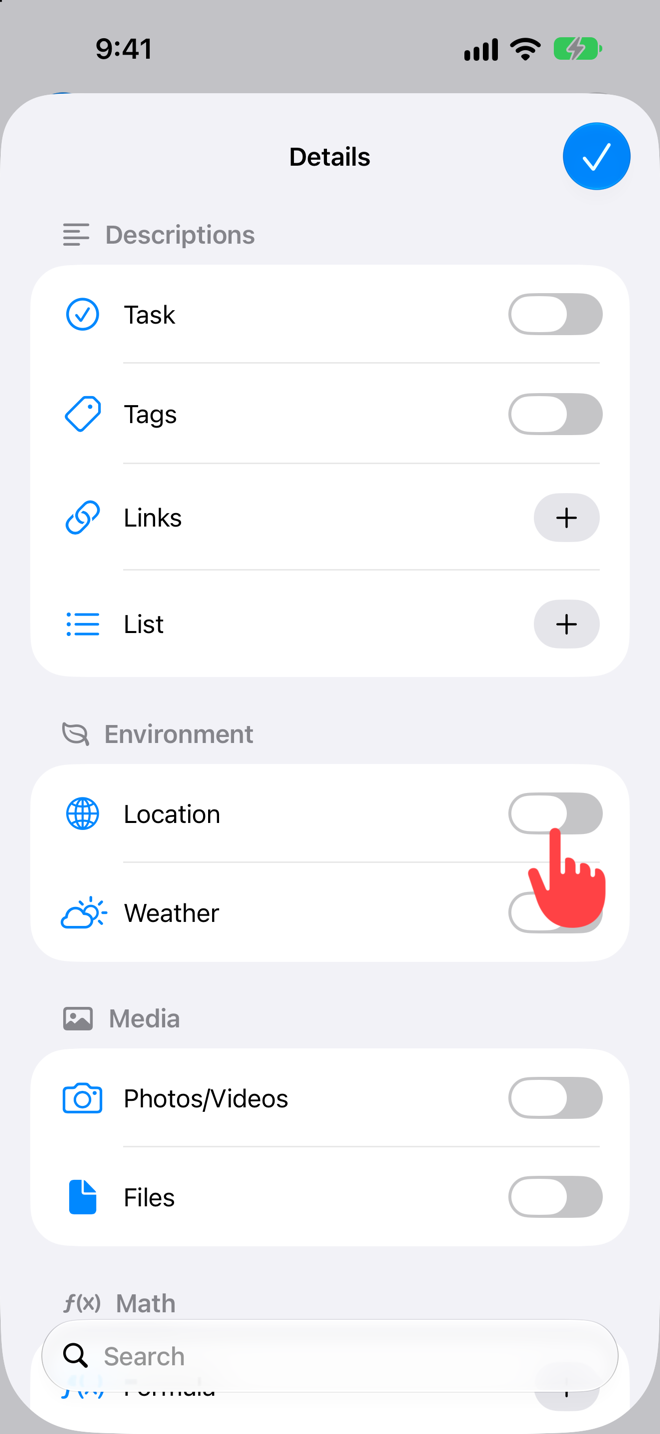
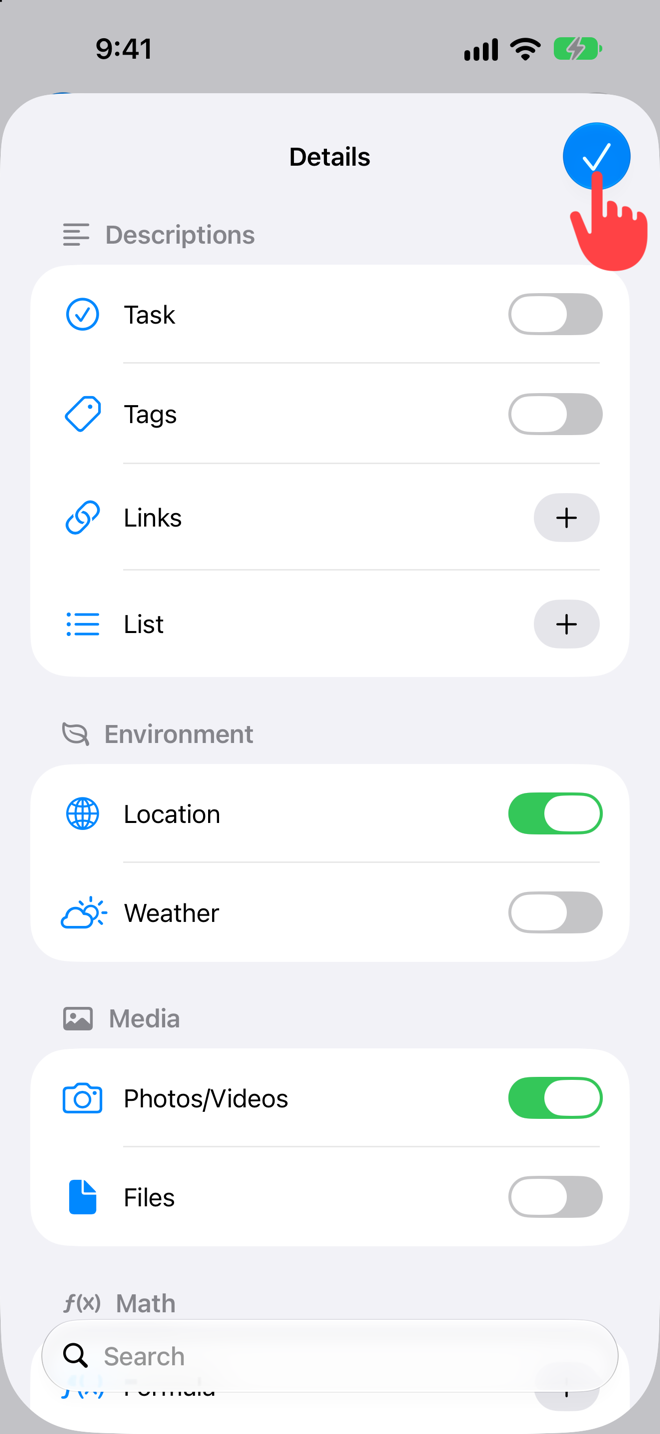
Turn on the details.
Image 2.11 Turn on the details.
Tap ✓.
Image 2.12 Tap ✓.

Your details appear right in the entry. Tap to fill them in.
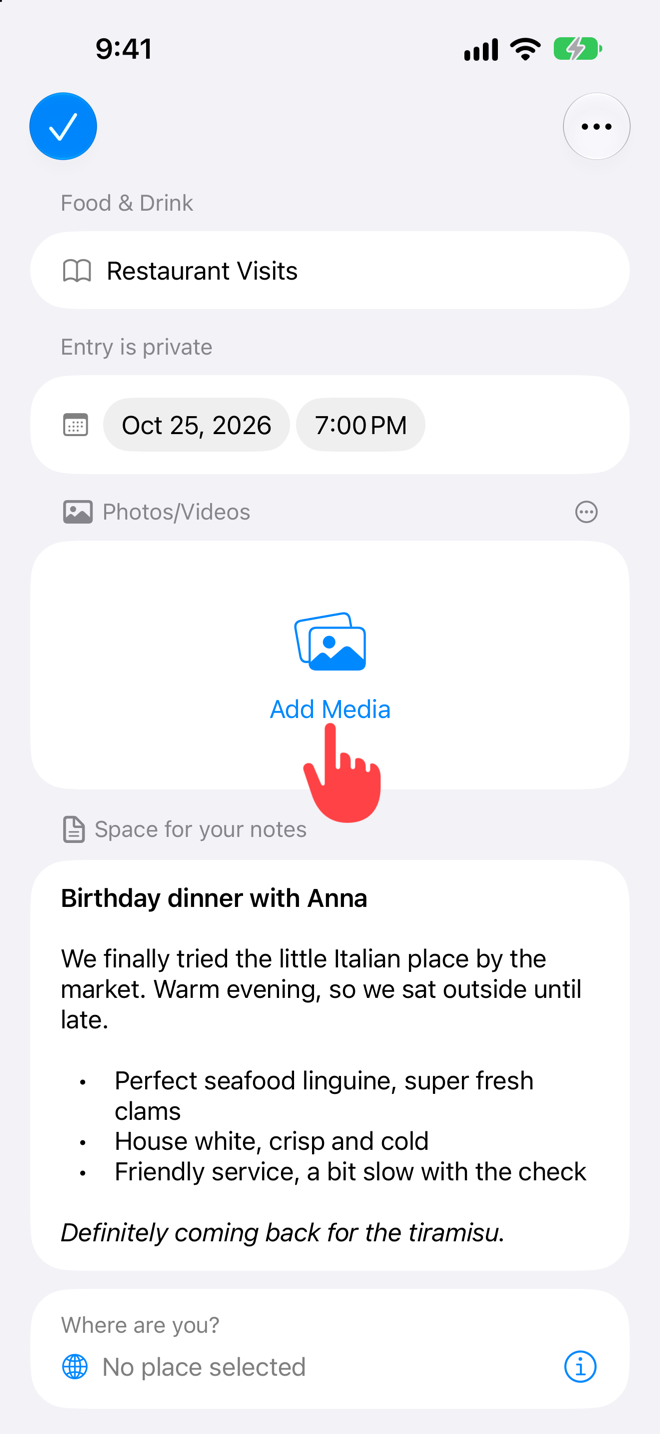
The entry with its details. Tap **Add Media**.
Image 2.13 The entry with its details. Tap Add Media.
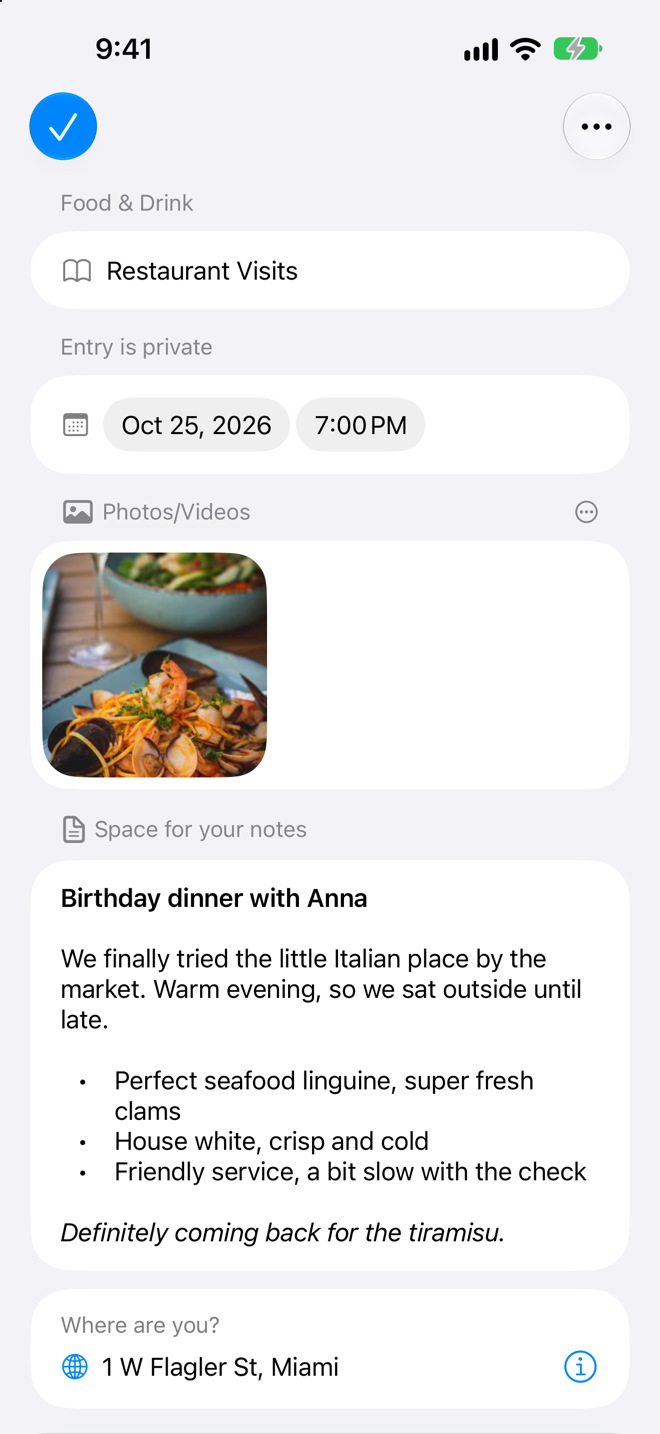
All filled in.
Image 2.14 All filled in.

Visit by visit, your personal restaurant timeline takes shape.

Over time, Deeply gives you answers:

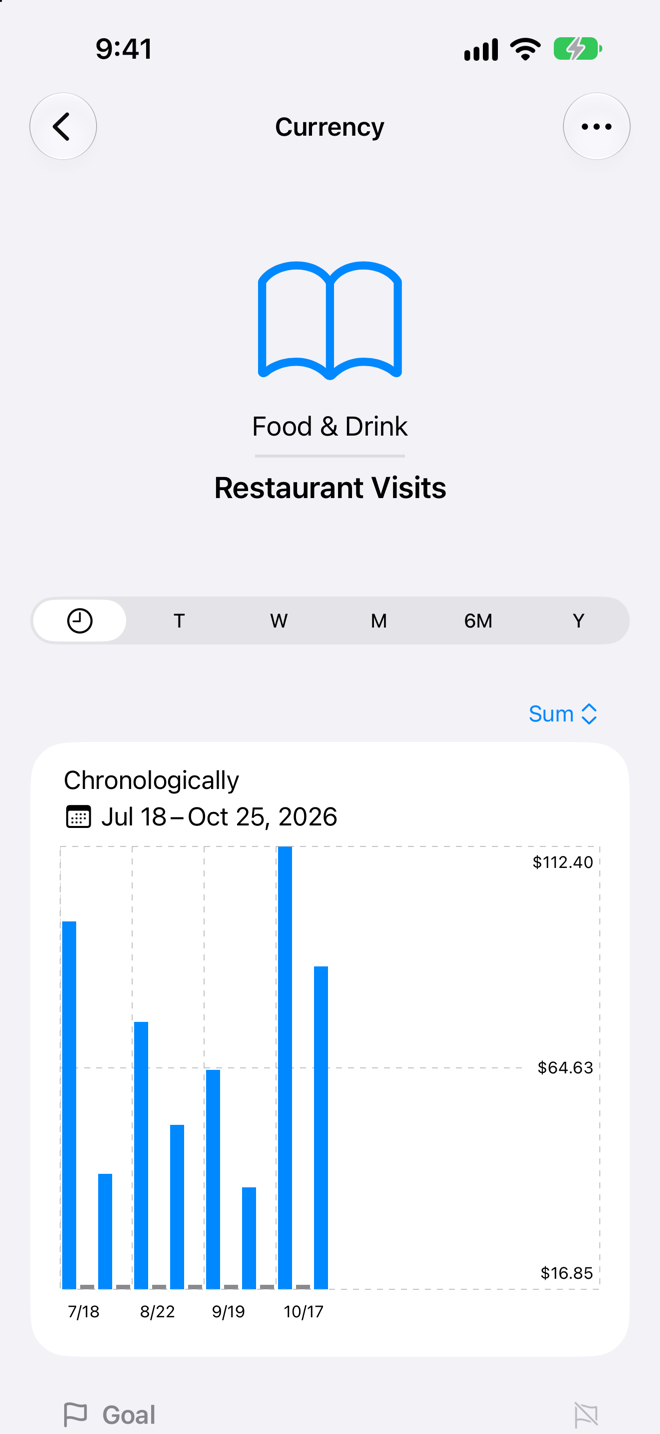
What each visit cost.
Image 2.15 What each visit cost.
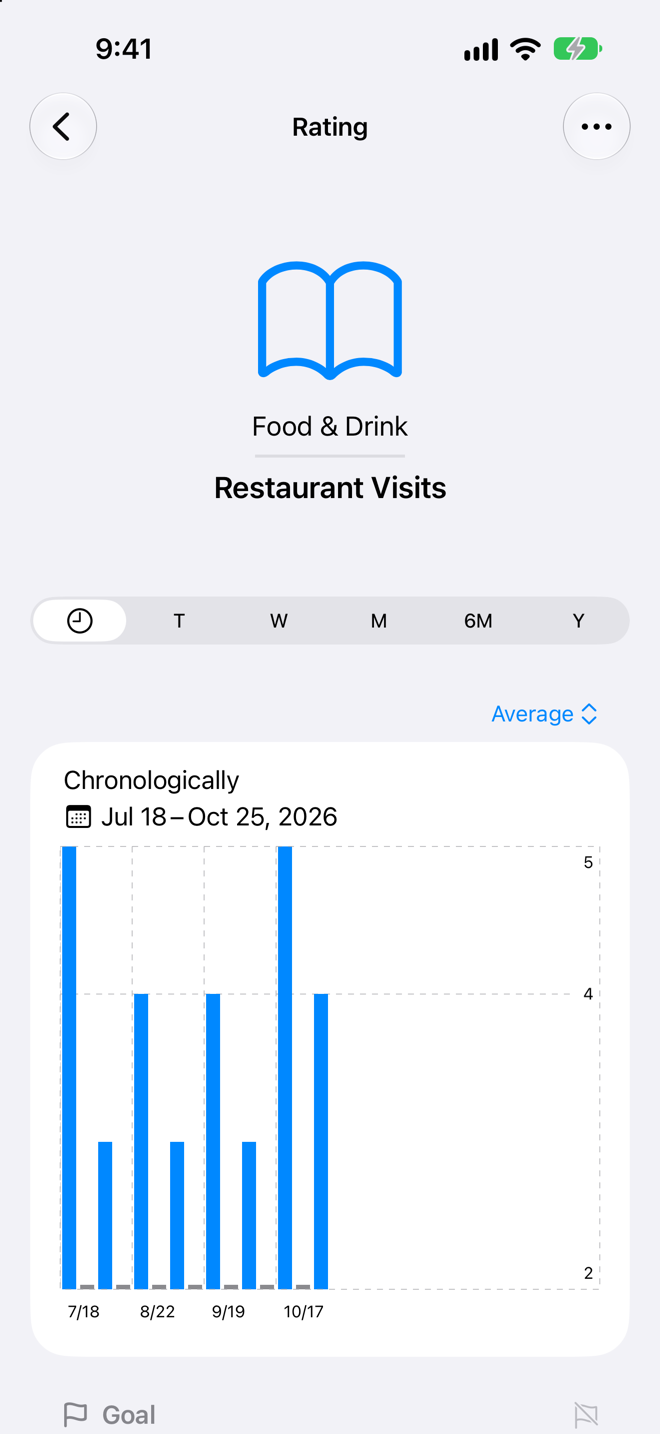
How each visit was rated.
Image 2.16 How each visit was rated.
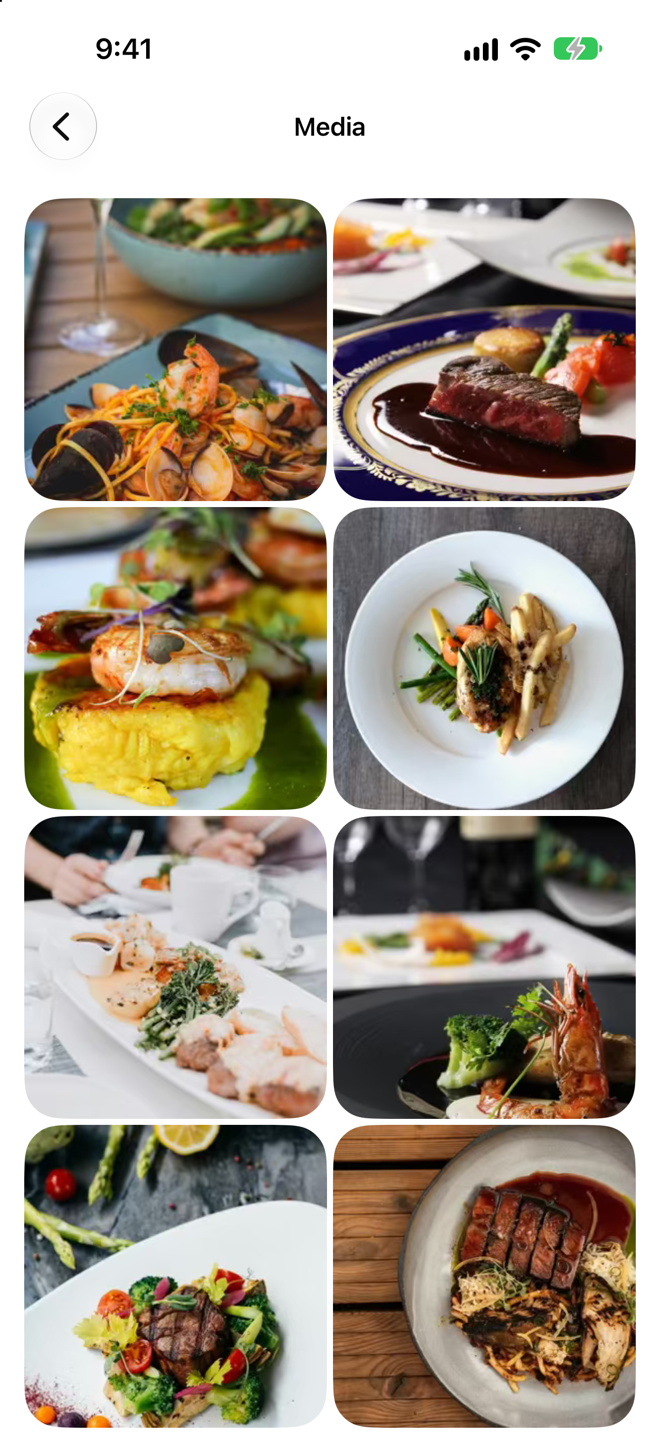
All your restaurant photos.
Image 2.17 All your restaurant photos.

When something matters to you, you don’t just want it written down. You want to understand it.